
When an image change is local but the instruction is not, the practical problem is usually communication: which region changes, what must stay untouched, and how the result will be checked. Cowart is a third-party Codex plugin that keeps that discussion on a project-backed canvas. This Cowart tutorial shows the verified installation path, then a small annotation-to-Codex editing loop that preserves the original asset for review.
The workflow is intentionally narrow: install from the upstream repository, open a canvas for a non-sensitive test image, mark one change, submit the annotated context to Codex, and compare the new image with the request. Cowart is not an OpenAI product, and its repository remains the source of truth for plugin behavior and installation details.[^cowart-readme][^cowart-manifest]
Before You Install Cowart
Start by treating Cowart as code you are adding to a local development workflow, not as a built-in Codex feature. The upstream repository identifies it as a tldraw-powered native widget plugin; its plugin manifest names ZHONG XIN as author and points to its own website.[^cowart-readme][^cowart-manifest] Read the current README before each installation, because marketplace paths and plugin loading behavior can change.
Verify the source and current requirements
Use the upstream GitHub URL, https://github.com/zhongerxin/cowart.git, and verify that the cloned directory contains .codex-plugin/plugin.json. The documented manual path installs Node dependencies and builds the plugin before it is added to the personal marketplace:
mkdir -p ~/plugins
git clone https://github.com/zhongerxin/cowart.git ~/plugins/cowart
cd ~/plugins/cowart
npm install
npm run build
Cowart's README then documents codex plugin marketplace add ~ followed by codex plugin add cowart@personal. The personal marketplace JSON references ./plugins/cowart, so check that its path is valid from your home directory before running the add command. The same README recommends starting a new Codex conversation so its skills and MCP tools load cleanly.[^cowart-readme]
Do not infer broader permissions from the label “plugin.” Keep the clone at the documented location, inspect the manifest and README, and use a disposable project first. If your organization requires package review or an allowlist, obtain that approval before installing it.
Prepare a non-sensitive test asset
Pick a copy of an image whose original is safe to retain locally: for example, a mock product card with a deliberately wrong background color. Avoid customer images, credentials in screenshots, private dashboards, and unreleased brand material for the first session. Cowart stores its canvas pages and page-local assets under the active project’s canvas/ directory, not in the plugin repository.[^cowart-readme]
Make the initial request small enough to inspect: “Change only the blue rectangle behind the headline to muted orange; preserve the text, crop, and icon.” Save the asset as product-card-v01.png before opening Cowart. A copied original makes it possible to distinguish a bad edit from a bad annotation.
Install and Confirm the Plugin Is Available
After the build and marketplace steps finish, open a fresh Codex conversation and ask: Open the Cowart canvas for this project. The upstream documentation says Cowart opens a native Codex widget through render_cowart_canvas_widget; normal use does not require navigating to a localhost page or an in-app browser.[^cowart-readme]
Confirmation is behavioral, not just a successful installation message. A usable setup opens the canvas for the active project and exposes the plugin’s described skills for opening the canvas, generating an image, and editing from an annotation screenshot. If the canvas does not open, stop before changing an image: re-check the marketplace entry, plugin installation, and whether the new conversation was actually started. Do not substitute an undocumented tool name.
Create Your First Cowart Editing Session
Open the canvas, add the non-sensitive source image, and save the session before drawing notes. The documented storage shape is canvas/pages/<page-id>/cowart-canvas.json with a sibling assets/ directory.[^cowart-readme] That makes the visual session project-local, but it does not replace version control or your existing asset-management policy.
Set a review target before making marks. Write down three fields outside the canvas: the input filename, the one intended change, and the acceptance rule. For the product-card example, the acceptance rule could be “only the background rectangle changes; text remains readable and the output retains the original aspect ratio.” This gives Codex a constraint and gives the reviewer a concrete comparison.
Mark the Exact Visual Change
Cowart’s annotation flow is useful when the image itself provides the missing location context. The goal is not to cover the asset with notes; it is to create one unambiguous change request that can be checked after the edit.
Select the relevant region
Draw the smallest mark that identifies the change surface. Use an arrow that terminates on the blue rectangle, not on the headline next to it. If the desired region has several instances, identify the one by position, such as “the upper-right card,” rather than assuming the model will choose correctly.
Describe the intended result
Pair the visual mark with a short constraint sentence: “Replace this blue fill with muted orange; do not alter the typography, icon, crop, or other cards.” Describe both the requested delta and the invariants. A region selection is guidance, not proof that an edit will be perfectly contained: OpenAI’s image-editing guidance notes that selection highlights may be imprecise and that edits can extend beyond the selected area.[^openai-images]
Remove conflicting annotations
Before sending, delete superseded arrows and mutually inconsistent notes. One arrow saying “orange” and another saying “keep blue” turns a local request into a prioritization problem. If the image needs unrelated changes, split the work into sequential edits and review the result after each one. Smaller requests make it easier to spot unintended changes and reproduce a failure.
Send the Annotated Context to Codex
Select the annotated image and use Cowart’s documented annotation-edit action. The plugin exports a screenshot containing the original image, arrows, and annotation text, then sends that context to Codex through the widget bridge.[^cowart-readme] Its documented result is a clean revised image placed beside the original; the original and annotations are not deleted or moved.[^cowart-readme]
In your message to Codex, restate the delta and the invariants even though they are visible: “Use the annotation screenshot. Change only the marked background to muted orange. Preserve all text, icons, crop, and dimensions.” This is deliberate redundancy: the screenshot supplies spatial evidence, while the sentence supplies the review rule.
Do not claim that the marked pixels impose a hard mask. Treat the generated asset as a proposed revision. If a change is safety-critical, regulated, or customer-facing, route it through the same human approval process you use for any other design asset.
Review the Edit Against the Original Request
Open the original and output side by side. First verify the requested property: is the background actually muted orange? Then verify the invariants: text spelling, icon geometry, crop, aspect ratio, and all unmarked regions. Record the output as a new version, such as product-card-v02-cowart.png, rather than overwriting v01.

For a team handoff, keep the original, the annotation screenshot, the written request, and the reviewed output together. This makes a later failure report testable: a teammate can see the exact input and the instruction instead of reconstructing intent from chat history. It also makes a rejected edit useful evidence for a narrower second request.
Troubleshoot Missing Context and Incorrect Edits
If Cowart does not appear in a new conversation, verify the upstream installation sequence rather than guessing at repair commands: clone and build the repository, verify .codex-plugin/plugin.json, register the personal marketplace, add cowart@personal, then begin a new conversation.[^cowart-readme] Check the active project too, because Cowart’s documented canvas data belongs under that project’s canvas/ path.
If Codex misses the target region, reduce visual ambiguity. Replace broad comments with one arrow, one requested delta, and a short list of invariants. If the output changes an unmarked area, revert to the preserved original and make a smaller request. This matches OpenAI’s published caution that a selection can be imprecise and an edit can reach beyond it.[^openai-images]
If the output is hard to evaluate, the failure is often procedural rather than visual: the original was overwritten, the asset version is unclear, or the annotation and request were separated. Restore the original, use a new versioned filename, and keep the next annotation screenshot with the request.
FAQ
How should teams name image versions during repeated edits?
Use a stable base name and an ordered suffix, such as product-card-v01.png, product-card-v02-cowart.png, and product-card-v03-approved.png. Keep the original immutable and link each revision to its annotation screenshot and change request.
What details make a failed edit report reproducible?
Attach the original asset, the Cowart annotation screenshot, the exact request text, the generated output, the active project path, and the observed mismatch. State which invariant failed, such as a changed icon or altered crop, instead of writing only “the edit was wrong.”
Should complex visual requests be split into smaller changes?
Usually, yes. Split unrelated regions or conflicting constraints into separate edits, review each output against the original, and carry only the approved result forward. This reduces ambiguity and makes unintended changes easier to isolate.
Who should approve edits to customer-facing product images?
Use the owner who already approves that asset class: typically a designer, product owner, or brand reviewer. Cowart and Codex can prepare a revision, but approval remains a workflow decision, especially when the image represents a customer-facing claim.
How can teams preserve the original asset before experimenting?
Copy the source into a versioned working file before opening the canvas, then retain the original alongside the annotation screenshot and reviewed output. Cowart’s documented annotation flow keeps the original and annotations in place, but the team should still maintain its own version and backup policy.[^cowart-readme]
[^cowart-readme]: Cowart README.en.md, verified 2026-07-30.
[^cowart-manifest]: Cowart plugin manifest, verified 2026-07-30.
[^openai-images]: OpenAI Help Center: Images in ChatGPT, verified 2026-07-30.
Explore this topic
Related posts
What Is Cowart? A Codex Plugin for Image Editing
Cowart is a third-party Codex plugin that uses a local infinite canvas for visual annotation and image-editing workflows.

Trae Context Engineering for Agents
Trae context engineering gives AI coding agents project rules, architecture context, and repository evidence before complex edits.

Trae Large Codebase Context: What an IDE Agent Can Actually See
Trae large-codebase work depends on code indexing, workspace context, and structured repository knowledge—not a single oversized prompt.
Cowart vs ChatGPT Image Editing
Cowart vs ChatGPT compares visual annotation workflows with chat-based image editing for precise revisions.

Cowart Use Cases for UI Mockups and Product Visuals
Cowart use cases include UI mockup edits, product visuals, annotated screenshots and creative iteration in Codex.

CC Switch Codebase Context Loss
Learn what CC Switch codebase context does not transfer when you change providers, and use a repository evidence layer to reduce context loss.
Latest posts
How to Install DeepSeek Harness: A Developer-Preview Guide to the Plugin-First Coding Agent
Learn how to install DeepSeek Harness from npm or source, understand its plugin-first design, and decide whether a fast-moving developer preview belongs in your coding workflow.
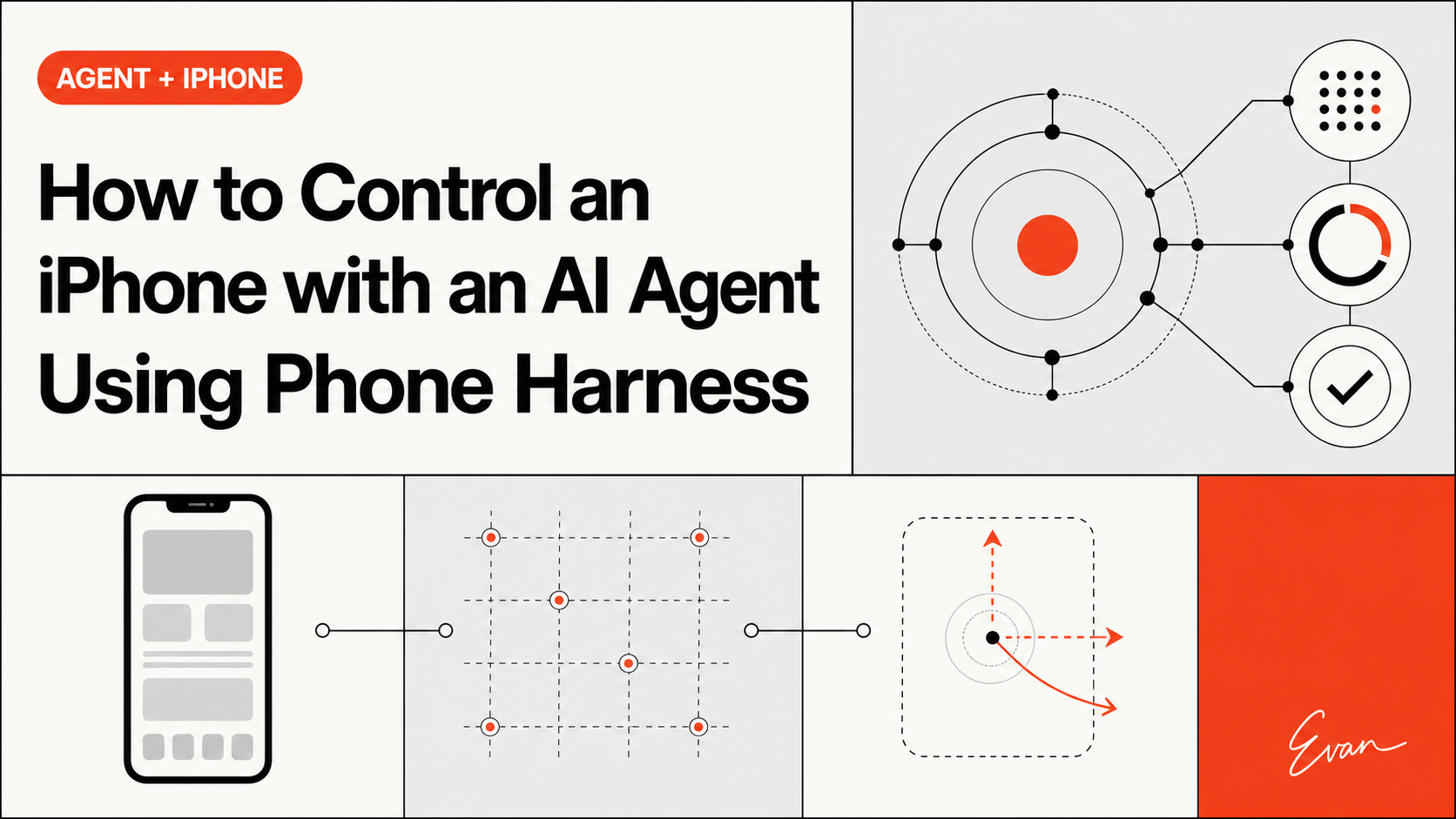
How to Control an iPhone with an AI Agent Using Phone Harness
See how Phone Harness connects an AI agent to a real iPhone through macOS iPhone Mirroring, including setup, OCR, HID input, permissions, and limits.

Symphony Knowledge Graph for Agent Memory
Symphony knowledge graph workflows can give long-running coding agents durable repository memory and system context.
What Is Cowart? A Codex Plugin for Image Editing
Cowart is a third-party Codex plugin that uses a local infinite canvas for visual annotation and image-editing workflows.
Trae Context Engineering for Agents
Trae context engineering gives AI coding agents project rules, architecture context, and repository evidence before complex edits.

Trae Knowledge Graph for Developers
Trae knowledge-graph workflows add repository intelligence beyond IDE chat context and code indexing.