Cowart is a third-party, open-source Codex plugin that puts a tldraw-powered canvas inside Codex for annotation-led image work. It is useful when a written request such as “move this element” is too ambiguous: put the original asset on a project-local canvas, mark the region and intended change, then send that visual context to Codex. Cowart is not an OpenAI product and it does not turn a review note into an automatically approved edit.
The distinction matters. Chat-based image editing can accept an upload and an instruction. Cowart’s extra layer is a persistent visual workspace: selected image slots, annotations, and page-local assets stay associated with the active project. The project’s public README says its normal canvas flow opens as an MCP widget and stores canvas pages beneath canvas/ in the active project; verify the installed version before relying on a particular tool name or behavior.
Cowart in 30 Seconds
Cowart is maintained in the public zhongerxin/Cowart repository under the MIT license. Its plugin manifest describes a native Codex widget canvas for visual thinking, image generation, and annotation-driven edits. In practical terms, it supplies a canvas surface; Codex remains the agent that receives the request and produces an image result.
That split is the right mental model:
| Part | Job | Does not decide |
|---|---|---|
| Cowart canvas | Holds the image, annotation geometry, and page-local assets | Whether the requested change is correct |
| Annotation | Makes the intended region and direction inspectable | Whether the model can preserve every unmarked detail |
| Codex | Interprets visual context and creates or revises an image | Product approval or rights clearance |
| Reviewer | Compares the result with the request and source asset | How the plugin is installed or configured |
Cowart’s README lists skills for opening the canvas, placing generated images, and producing revisions from an annotation screenshot. Those are repository-provided plugin skills, not official OpenAI features. For the broader command-line product, see the Codex CLI Guide.
The Problem With “Change This Part of the Image”
Image instructions usually fail at the boundary between a reviewer’s intention and a model’s coordinate system. “Make the lower badge smaller” leaves open which badge, how much smaller, what should remain unchanged, and whether the edit includes the surrounding crop. A reviewer then has to explain the correction again after the first result.
An annotation changes the conversation from a broad description into bounded evidence. A useful note identifies three things: the source region, the desired state, and the preservation rule. For example, an arrow to a navigation label plus “replace only this label; retain spacing and all other copy” gives a reviewer a concrete inspection target. It is still an instruction, not a mask-level guarantee. OpenAI’s image editor documentation also warns that a selected highlight may not be exact and an edit can extend outside the selected area.

The practical gain is reviewability, not magical precision. A team can retain the original, the annotated request, and the output side by side. That makes a missed instruction reproducible rather than a vague complaint about an image model.
How Cowart Fits Into a Codex Visual Editing Workflow
Use Cowart as the visual context layer in a small, reviewable loop. The official repository describes the current sequence; use the Cowart tutorial for the exact installation and confirmation steps.
Open the visual asset
Start with a non-sensitive copy of the source asset. The plugin README says canvas data is project-local, so the active project boundary matters: a shared checkout makes the files available to anyone with access to that checkout. Store the original in a controlled asset location and treat the canvas copy as working material. Do not assume “local” means that every user, backup, sync tool, or repository collaborator is authorized to see it.
Mark the intended region
Place arrows or concise annotations on the image. Include one change per mark where possible. State what must remain stable, especially for product screenshots: text, brand colors, legal marks, crop, and adjacent controls. If two requested changes have different reviewers or approval rules, create two annotated versions instead of one overloaded diagram.
Pass visual context to Codex
Cowart’s documented annotation flow exports a screenshot containing the original image, arrows, and annotation text, then sends it through its widget bridge. Codex can use that screenshot as visual context to generate a clean revised image and place the result beside the original. This is a workflow claim from Cowart’s repository, not a claim that Codex offers a dedicated Cowart feature. A detailed Cowart use-case guide shows when that context is worth creating.
Review the resulting edit
Review against the marked request, not against memory. Check the named region first, then inspect unmarked areas for changed text, crop, background, colors, and interface controls. Save a versioned output only after the owner accepts it. For customer-facing imagery, retain the original, request, output, reviewer, date, and any model/tool version that the workflow exposes.

What Cowart Handles—and What Codex Handles
Cowart handles a visual workspace and structured handoff. It can keep an annotated source close to the resulting image, and the repository documents selected image slots whose placement and aspect ratio inform generation. Codex handles the actual model-facing work: interpreting an image, prompt, references, and the supplied context to create a result.
Neither layer replaces design judgment. A request can be well annotated yet still conflict with accessibility, brand, copyright, or product requirements. The human owner should decide whether an asset is safe to upload, whether a generated variant may be used, and whether the result should be shipped. That is especially important for third-party screenshots and campaign art, where source authorization is separate from the ability to edit pixels.
Best-Fit and Poor-Fit Editing Tasks
Cowart is a good fit for a finite change with a visual review target:
- correcting a component label or an outdated screenshot region;
- showing an engineer the precise visual defect to investigate;
- preparing alternate creative directions while retaining the source and annotations;
- handing a product-image request from a non-designer to a reviewer without translating coordinates into prose.
It is a poor fit for an unbounded redesign, licensed-asset cleanup without rights confirmation, or changes where a pixel-perfect source-of-truth file is required. In those cases, use the design system, the original design file, or a human designer. The Cowart versus ChatGPT image editing comparison explains when a direct chat edit may be faster.
Trust, Installation Source, and Privacy Boundaries
Install Cowart from the maintainer’s repository, not from an unverified copy with the same name. Its README currently documents cloning https://github.com/zhongerxin/cowart.git into ~/plugins/cowart, running npm install and npm run build, registering the personal marketplace, then installing cowart@personal. It also advises a new Codex conversation so plugin skills and MCP tools load cleanly. Treat that as version-specific guidance: inspect .codex-plugin/plugin.json, the repository revision, and the plugin’s requested capabilities before installation.
The README states that canvas files default to the active project’s canvas/pages/<page-id>/ directory. That is a storage location, not a privacy policy. Before adding a customer image, check repository access, local backups and sync, task logs, image-upload rules, and the model provider’s current terms. Exclude secrets, access tokens, personally identifying imagery, and any asset without a documented editing right.
FAQ
Can Cowart projects move between developer machines?
They can be moved only as files in the relevant project workspace, subject to normal source-control and asset-access rules. Before sharing, confirm that the canvas JSON and assets/ directory are included, the recipient has the same authorized plugin version, and the underlying images may be redistributed.
How should teams record who requested each change?
Store the request identifier, annotated image, output filename, reviewer, and approval date alongside the asset record. A canvas is useful context but should not be the sole audit trail for a customer-facing change.
What happens when annotations refer to resized images?
Keep the annotated source together with its dimensions and output version. Recreate or recheck the marks after resizing; coordinates and visual intent can drift when the crop or aspect ratio changes.
Should visual edits receive the same review as code changes?
Apply a review appropriate to the risk. Public UI, legal copy, brand marks, accessibility-sensitive content, and licensed creative assets usually need a named owner. Low-risk internal mockups may need only a quick requester check.
Where can users report a reproducible plugin issue?
Use the Cowart repository’s issue tracker and include the plugin revision, Codex surface, operating system, a sanitized reproduction, and whether the problem concerns canvas opening, selection context, or output placement. Do not attach sensitive project assets to a public issue.
Conclusion
Cowart is a third-party visual annotation layer for Codex, not a replacement for ChatGPT Images, a design tool, or human approval. Choose it when an image change needs a durable visual request, project-local context, and a side-by-side review loop. Choose a simpler chat edit for a small, self-contained change, and stop for human review whenever ownership, privacy, or accuracy is uncertain. For a broader repository-context perspective, visit the Graphify AI Coding hub.
Explore this topic
Related posts

Trae Context Engineering for Agents
Trae context engineering gives AI coding agents project rules, architecture context, and repository evidence before complex edits.

Trae Large Codebase Context: What an IDE Agent Can Actually See
Trae large-codebase work depends on code indexing, workspace context, and structured repository knowledge—not a single oversized prompt.
Cowart vs ChatGPT Image Editing
Cowart vs ChatGPT compares visual annotation workflows with chat-based image editing for precise revisions.

Cowart Use Cases for UI Mockups and Product Visuals
Cowart use cases include UI mockup edits, product visuals, annotated screenshots and creative iteration in Codex.

Cowart Tutorial for Codex Image Annotation
Cowart tutorial: install the Codex plugin, annotate images, capture context and request precise visual edits.

CC Switch Codebase Context Loss
Learn what CC Switch codebase context does not transfer when you change providers, and use a repository evidence layer to reduce context loss.
Latest posts
How to Install DeepSeek Harness: A Developer-Preview Guide to the Plugin-First Coding Agent
Learn how to install DeepSeek Harness from npm or source, understand its plugin-first design, and decide whether a fast-moving developer preview belongs in your coding workflow.
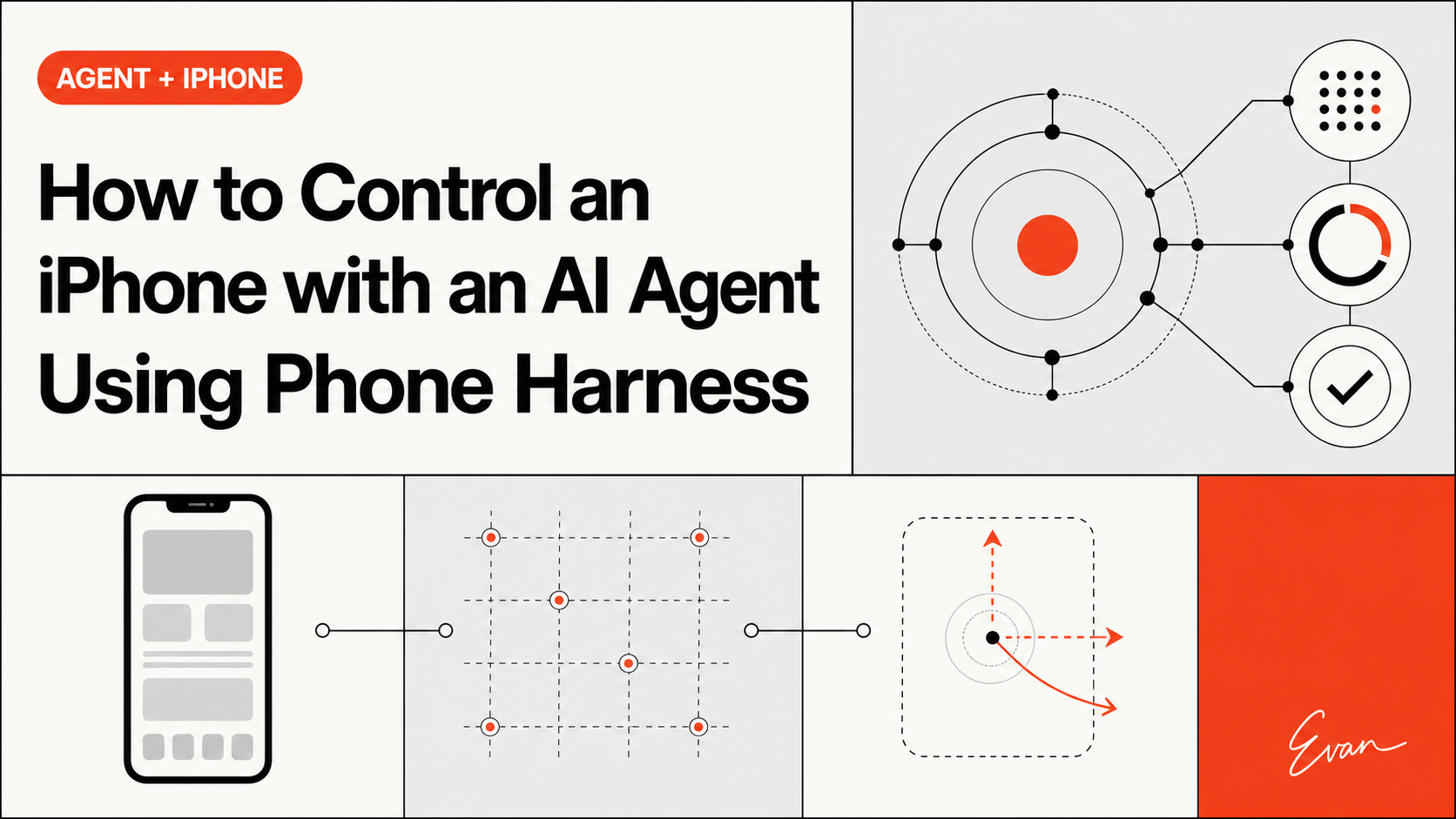
How to Control an iPhone with an AI Agent Using Phone Harness
See how Phone Harness connects an AI agent to a real iPhone through macOS iPhone Mirroring, including setup, OCR, HID input, permissions, and limits.

Symphony Knowledge Graph for Agent Memory
Symphony knowledge graph workflows can give long-running coding agents durable repository memory and system context.
Trae Context Engineering for Agents
Trae context engineering gives AI coding agents project rules, architecture context, and repository evidence before complex edits.

Trae Knowledge Graph for Developers
Trae knowledge-graph workflows add repository intelligence beyond IDE chat context and code indexing.
Trae Large Codebase Context: What an IDE Agent Can Actually See
Trae large-codebase work depends on code indexing, workspace context, and structured repository knowledge—not a single oversized prompt.